

When I started learning Microsoft PowerPoint, I never noticed what was wrong with it. In fact, there is nothing wrong with that, but PowerPoint’s measurement system is tied to our computer’s system, which limits design and layout customization. When I first noticed this challenge, I checked Microsoft Word, but it’s different from PowerPoint. Microsoft Word offers built-in functions that let us switch measurement systems, such as inches, cm, mm, points, and pics.
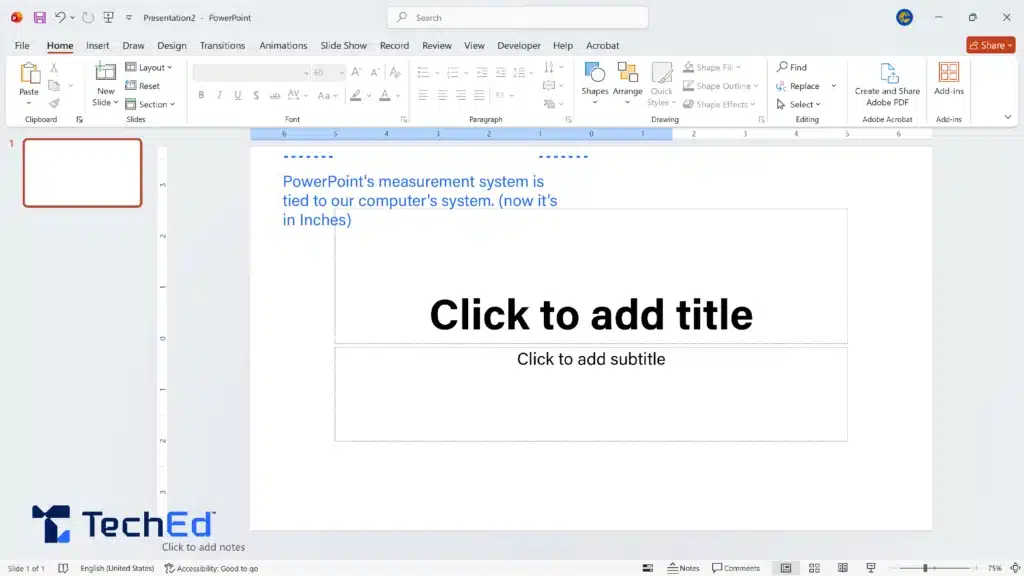
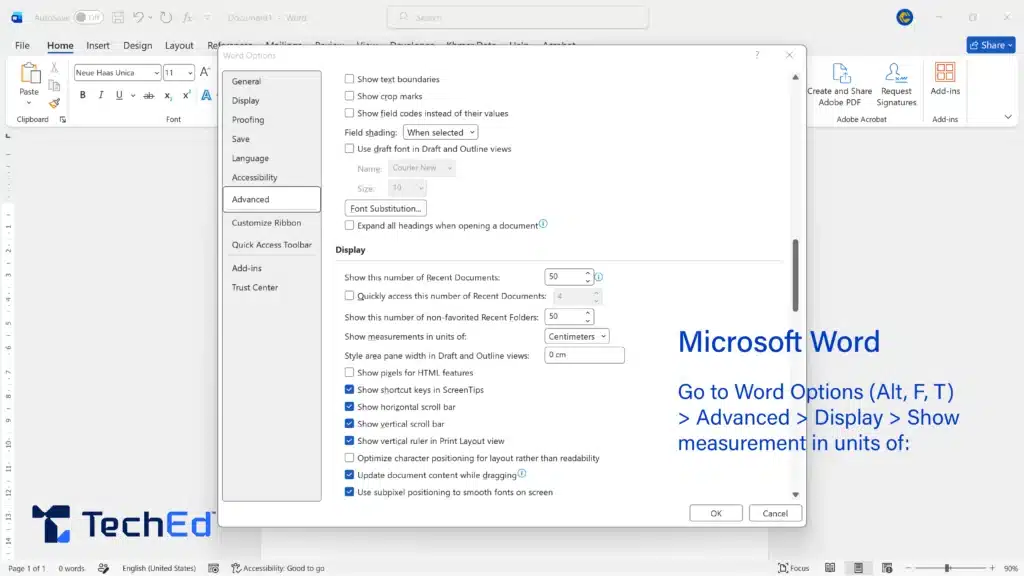
As you can see in Figure 1, Microsoft Word is so great. You can go to advance option and scroll to display session and change measurement system.
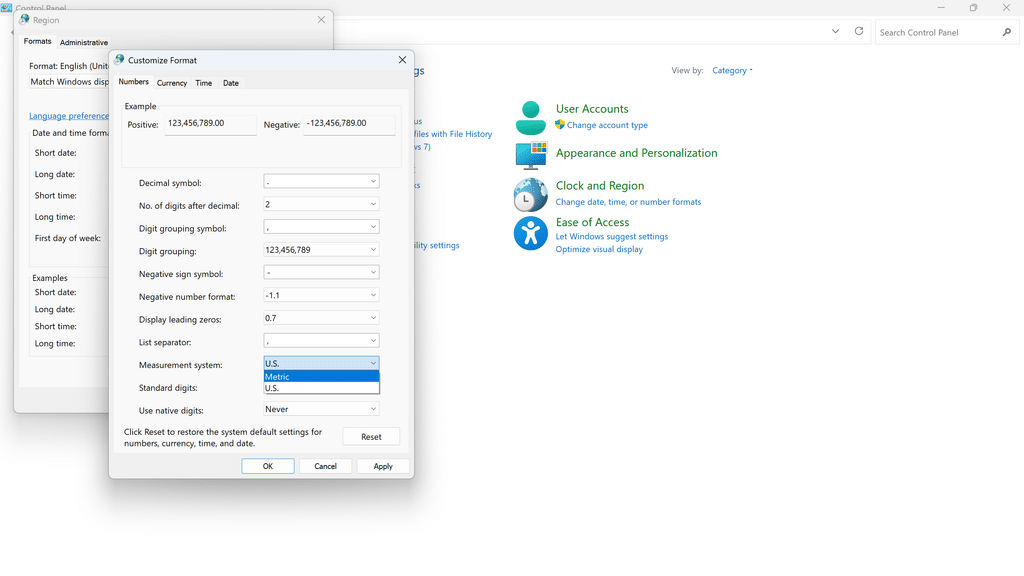
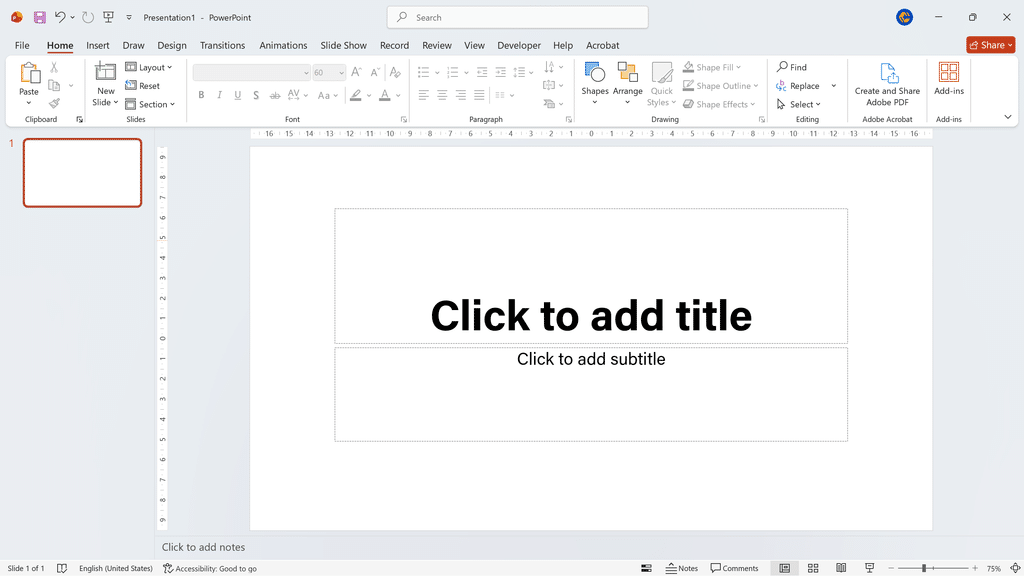
The defualt measurement system in pc is normally “inch (US system), and PowerPoint also synchronizes that size system, so to change measurement system in PowerPoint we need to change in personal computer first.
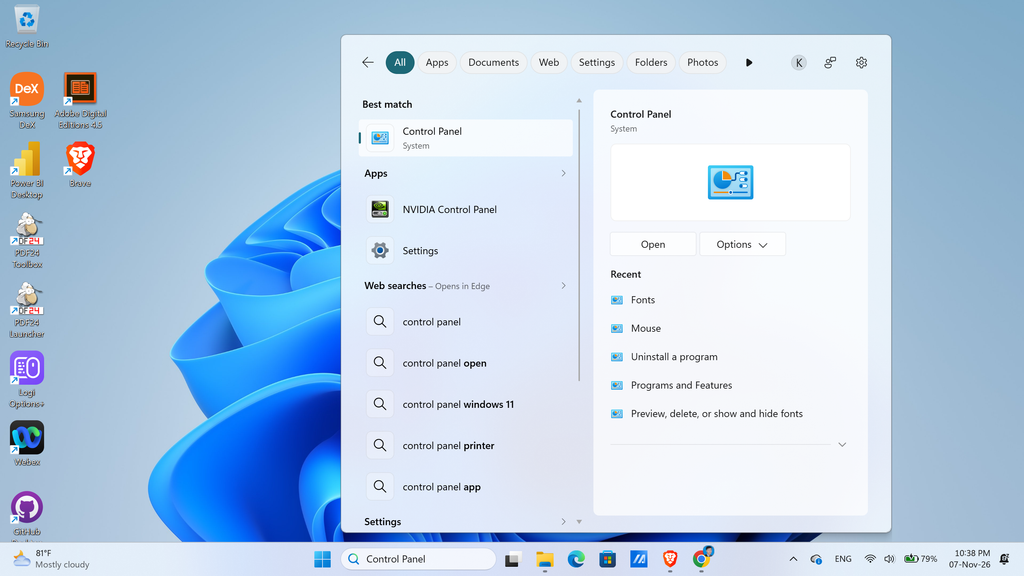
Step 1: Go to Control Panel
There are 3 ways to go to Control Panel: (1) Windows icon + R, and type “control”, then press Enter, (2) search “control panel”, (3) go to the Start menu and find Control Panel
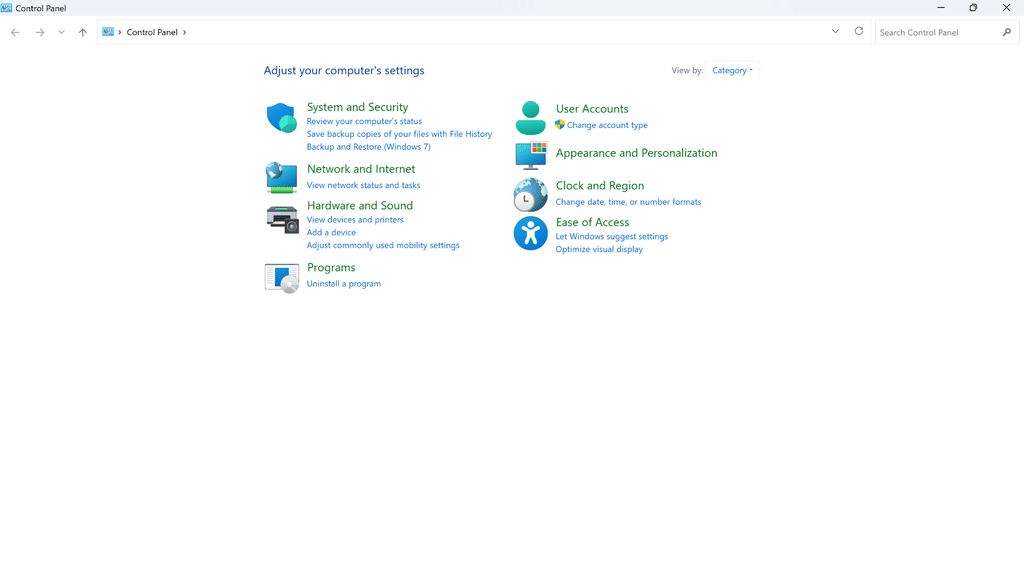
Step 2: Choose Clock and Region
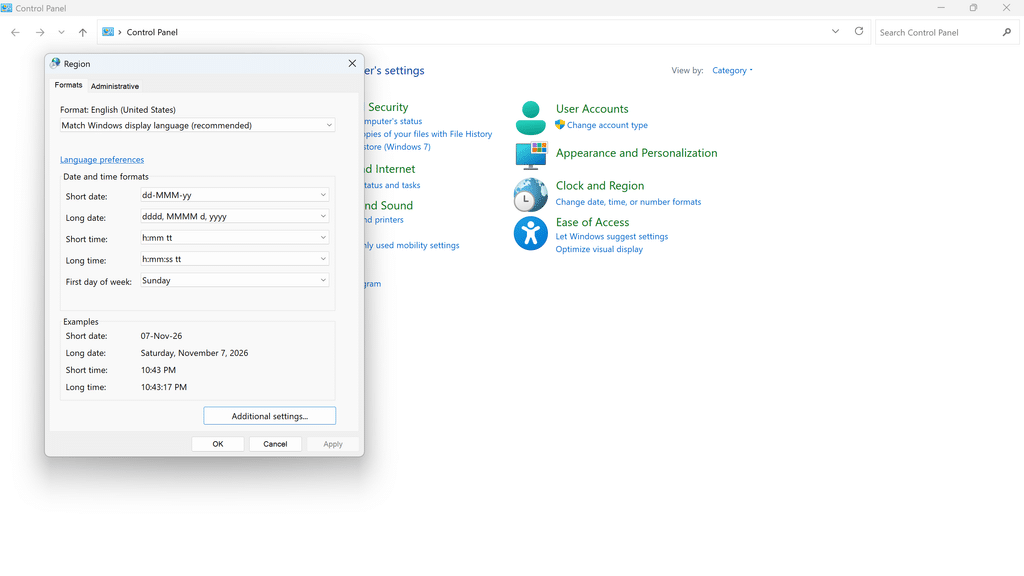
Windows operating system might be changed time to time, what you can remember is a brief description below main title. As you might this figure 2, a short description of Clock and Region are Change date, time, or number formats. According to this, I suggest keeping in mind that number formats are a main objective we focus on.
Step 3: Click Region
Just like what I mentioned in step 2, you can see “number formats” in the brief description below Region. Click it and follow the short video.
I hope this blog post is helpful for you. I found this really helpful to me because I love designing and customizing PowerPoint slides, and changing measurement sizes helps me to be more flexible and more creative and design faster and easier.

Leave a Reply